Chrome agentic browser guide
Chrome Agentic Browser: How Gemini Auto Browse Works and What to Check
Chrome's AI story now includes more than page summaries. Gemini in Chrome can help you understand the current page, while more agent-like features can plan browser steps and ask for control at important moments. This guide separates those experiences so you can test them without handing an AI unrestricted access to your accounts.
Updated September 13, 2026
The short answer
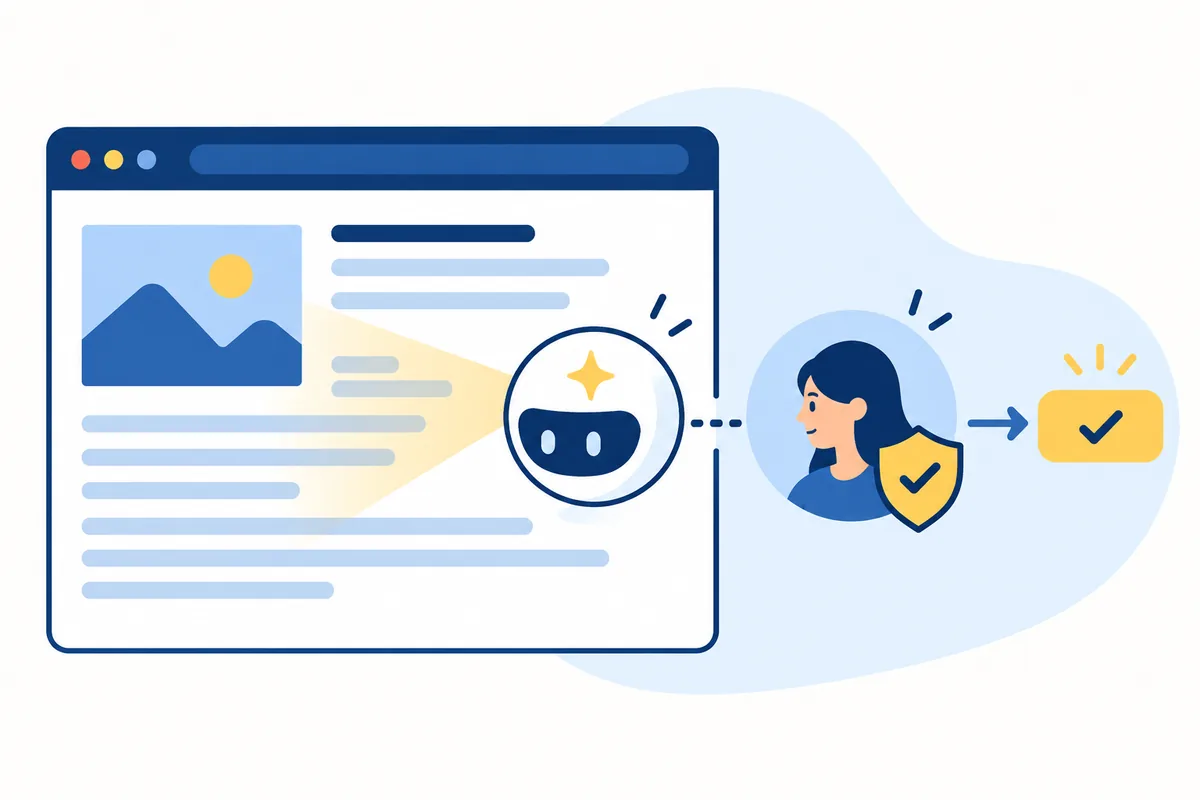
A Chrome agentic browser is best understood as Chrome plus an AI system that can use page context to pursue a goal across more than one step. That label can hide two very different experiences. Gemini in Chrome may answer questions, summarize a page, compare tabs, or help draft text. An agentic mode goes further when it can plan navigation, interact with websites, and prepare an outcome instead of only describing what you see.
Google's current Chrome help describes AI Mode and Auto Browse as eligibility-dependent features rather than a universal setting that every Chrome user receives. Availability can depend on country, age, account type, language, plan, rollout status, and browser safety settings. Treat the official help page as the source of truth on the day you test it; a search result, social post, or extension listing may describe an experiment that is not enabled for your profile.
The practical rule is simple: use Chrome AI as a reading and planning assistant first, then allow a browser agent to act only on low-risk pages with a clear review step. Keep banking, administrator panels, private mail, customer data, purchases, downloads, and publishing workflows outside early experiments. If a task is fixed and repeatable, a script or traditional automation may still be easier to audit than an agent that makes decisions while it browses.
Chrome AI assistance is not the same as an agent
Use this boundary when a product page calls itself an AI browser, agentic browser, or Chrome browser agent.
| Mode | Typical input | What you receive | Control question |
|---|---|---|---|
| Gemini in Chrome | The current page, selected text, tabs, or a natural-language question | A summary, answer, comparison, draft, or explanation | What page context is shared, and can you clear or limit it? |
| Auto Browse or agent mode | A goal that may require several web steps | A prepared or completed browser workflow, sometimes with a review pause | Where does the browser ask you to approve, take over, or stop? |
| AI Chrome extension | A page plus extension permissions and selected actions | A feature added by a third party, such as extraction, writing, or automation | Does the extension need access to every site, and who operates its model? |
| Traditional automation | A known URL, selector, API, or repeatable recipe | A deterministic script result when the page contract remains stable | Can you test, log, retry, and review the recipe without model decisions? |
What to check before you enable Chrome agentic features
The useful question is not whether Chrome has an AI button. It is whether the feature's context, permissions, and recovery behavior fit the task.
Eligibility and rollout
Open the official Chrome help page and confirm the feature is available for your country, age, account, language, plan, and browser version. Do not infer support from a tutorial written for another market.
Page context boundaries
Check what the assistant can read: the active page, selected text, other tabs, history, downloads, or files. A useful summary feature still deserves a clear data boundary.
Human takeover
For sign-ins, payments, account changes, uploads, purchases, or final submissions, the user should be able to pause the workflow and complete the sensitive step manually.
Prompt injection
A browser agent reads untrusted page content. Treat instructions inside a web page as data, not authority, and never let a page silently redefine the task or request secrets.
Separate profiles
Test on public pages with a clean profile. Keep private email, banking, work administration, customer dashboards, and production accounts out of the first trial.
Choose the right automation
If the steps never change, Playwright or another scripted tool may provide better logs and repeatability. Use an agentic browser where changing page context and judgment are the real problem.
Assistant versus agent: the visual boundary
The difference is not the presence of an AI icon. It is whether the system only explains a page or can move through a task that changes state.
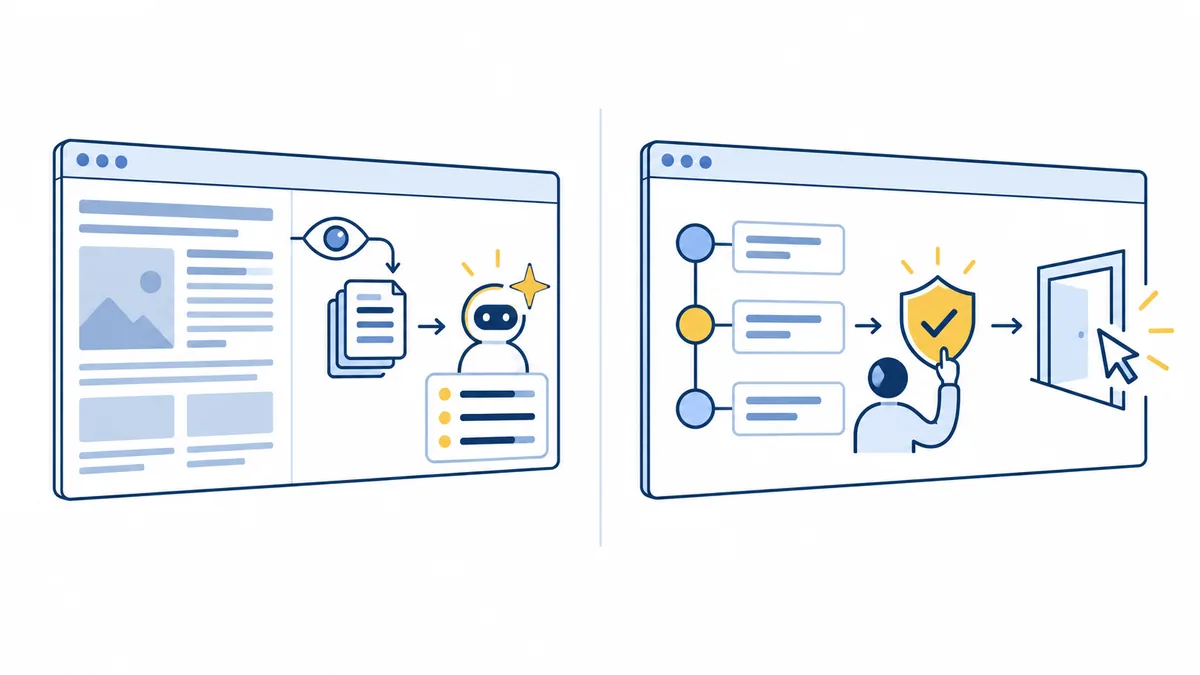
Keep the explanation and planning stages visible. Before an agent clicks, submits, downloads, or changes an account, require a clear approval boundary and a way to recover.
A safer way to test a Chrome browser agent
Start with a workflow that produces useful evidence without giving the browser access to your most sensitive state.
Choose a public, reversible task
Ask the browser to compare public documentation, collect a short research brief, or organize information that can be checked by hand. Avoid tasks that send messages, buy products, or change account settings.
Ask for a plan before an action
Use a prompt that requests the intended steps, pages, assumptions, and stopping points. A plan gives you a chance to remove a risky step before the agent touches a form or private page.
Approve one meaningful boundary at a time
Review the target domain, requested data, final values, and side effects. Take over for passwords, payment details, confidential uploads, downloads, and publishing rather than treating approval as a formality.
Verify the result and keep a record
Compare the output with the original page, note what the agent actually did, and record failures or unexpected navigation. If the same task repeats, decide whether deterministic automation is now the safer tool.
When Chrome agentic browsing is the wrong tool
A browser agent is useful for variable, context-heavy work. It is a poor fit when one wrong click creates an irreversible or expensive result.
Payments and purchases
Do not delegate the final payment or purchase confirmation. Review the merchant, product, quantity, shipping details, and total yourself in the real browser state.
Passwords and private accounts
Avoid exposing password managers, private mail, identity documents, or administrator panels until the product's data access and retention rules are clear.
Uploads and publishing
A page can ask an agent to upload a secret file or publish text under the wrong account. Keep file selection and final publication under direct human control.
Irreversible changes
Prefer a script, preview, draft mode, or manual review for deletions, permissions, account changes, and production operations. Recovery is part of the tool choice, not an afterthought.
Unclear product claims
If the feature name is vague, the eligibility is unclear, or the vendor does not explain page access, pause. Read official documentation before installing an extension or connecting an account.
Continue with the right comparison
Use the page that matches the next decision instead of forcing every browser question into one Chrome guide.
Browser Agent Security Risk
Review prompt injection, page access, privacy exposure, and approval controls before using an agent on sensitive sites.
Best AI Chrome Extensions
Compare extensions when you want to add a focused capability to Chrome rather than adopt a browser-level agent.
AI Agent Browser vs Automation
Decide when a changing, context-heavy task needs an agent and when a repeatable script is the better boundary.
Official sources to recheck
Chrome AI features, eligibility, and rollout details can change. These first-party pages are the right place to verify availability before you act on a tutorial.
Want the broader agent-browser decision?
Start with a low-risk workflow, then compare agentic browsers, extensions, and traditional automation by the control you need—not by the loudest AI feature claim.
Chrome agentic browser FAQ
Short answers for readers comparing Gemini in Chrome, Auto Browse, agentic browsing, and Chrome extensions.
What is a Chrome agentic browser?
It is Chrome used with an AI system that can understand page context and pursue a goal across multiple browser steps. The phrase may describe simple assistance or a more action-oriented mode, so always check the actual inputs, permissions, approval points, and recovery behavior.
Does Chrome have an AI agent?
Chrome has several AI experiences, and Google Help describes eligibility-dependent features such as AI Mode and Auto Browse. Whether a specific account can use them depends on current rollout, market, account, language, age, plan, and safety requirements. Verify the official help page rather than assuming every Chrome installation has the same feature.
What can Chrome Auto Browse do?
The intended use is to help with multi-step web tasks while keeping the user involved. The exact tasks and availability can change. Treat it as a supervised capability: review the plan, take over sensitive steps, and verify any result that changes an account, payment, file, or published page.
Is a Chrome agentic browser the same as an AI extension?
No. An extension adds a third-party capability to Chrome and may request broad page permissions. A browser-level AI feature is integrated into the browser experience. Both can be useful, but you should evaluate who receives page data, what sites are in scope, how settings are controlled, and how the feature fails.
Is Chrome agentic browsing safe?
It can be useful when the task is low risk, page access is understandable, human approval is real, and sensitive accounts are isolated. It is not automatically safe because it is built into Chrome. Prompt injection, accidental navigation, data exposure, and unwanted side effects remain reasons to keep a human in control.