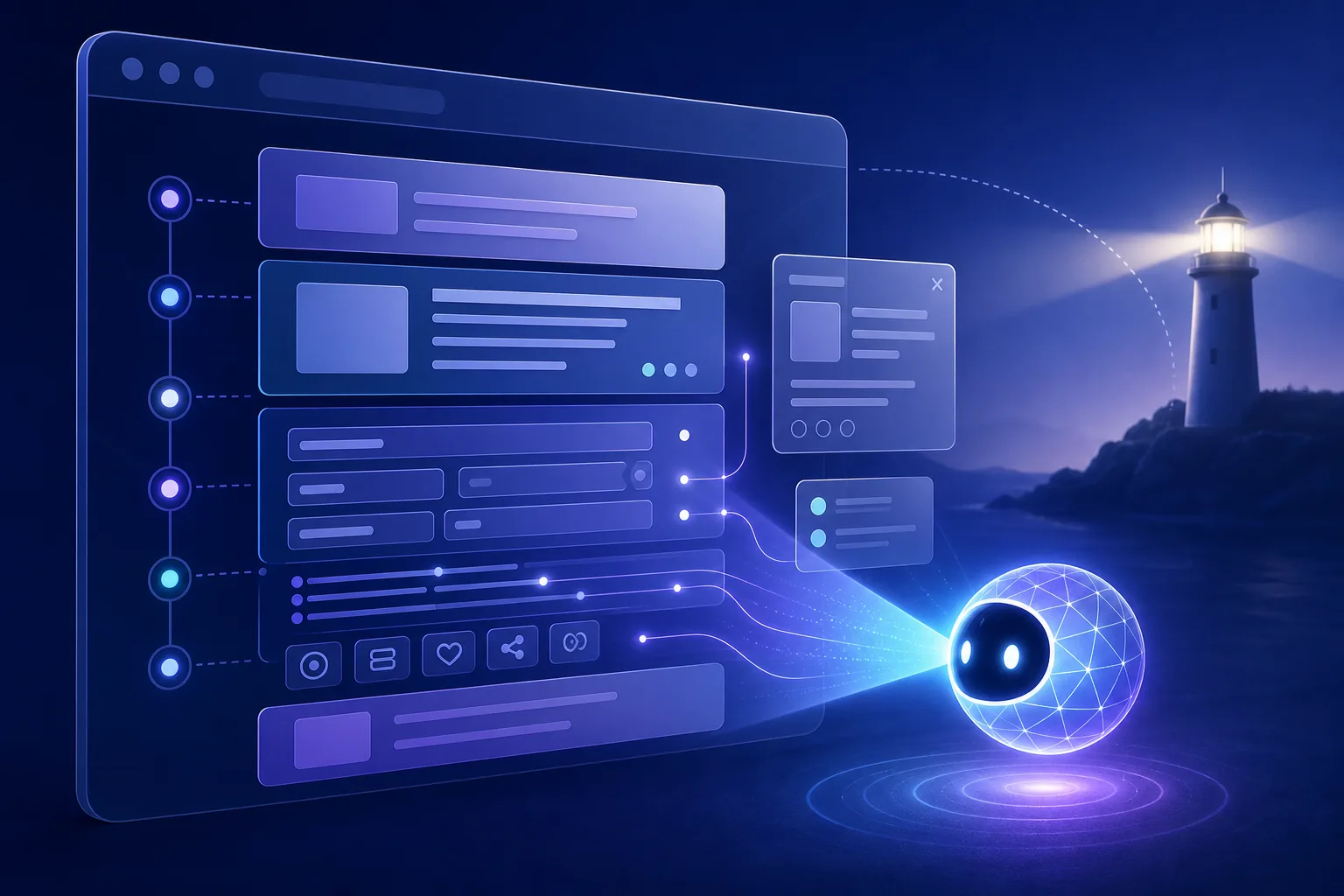
What an agentic browsing audit checks
An agentic browsing audit is narrower than a general AI-browser comparison. It asks whether the page itself makes its structure, controls, state, and safe next steps understandable to a browser agent. The definition page on agentic browsing explains the concept; this page focuses on the practical test and repair loop.
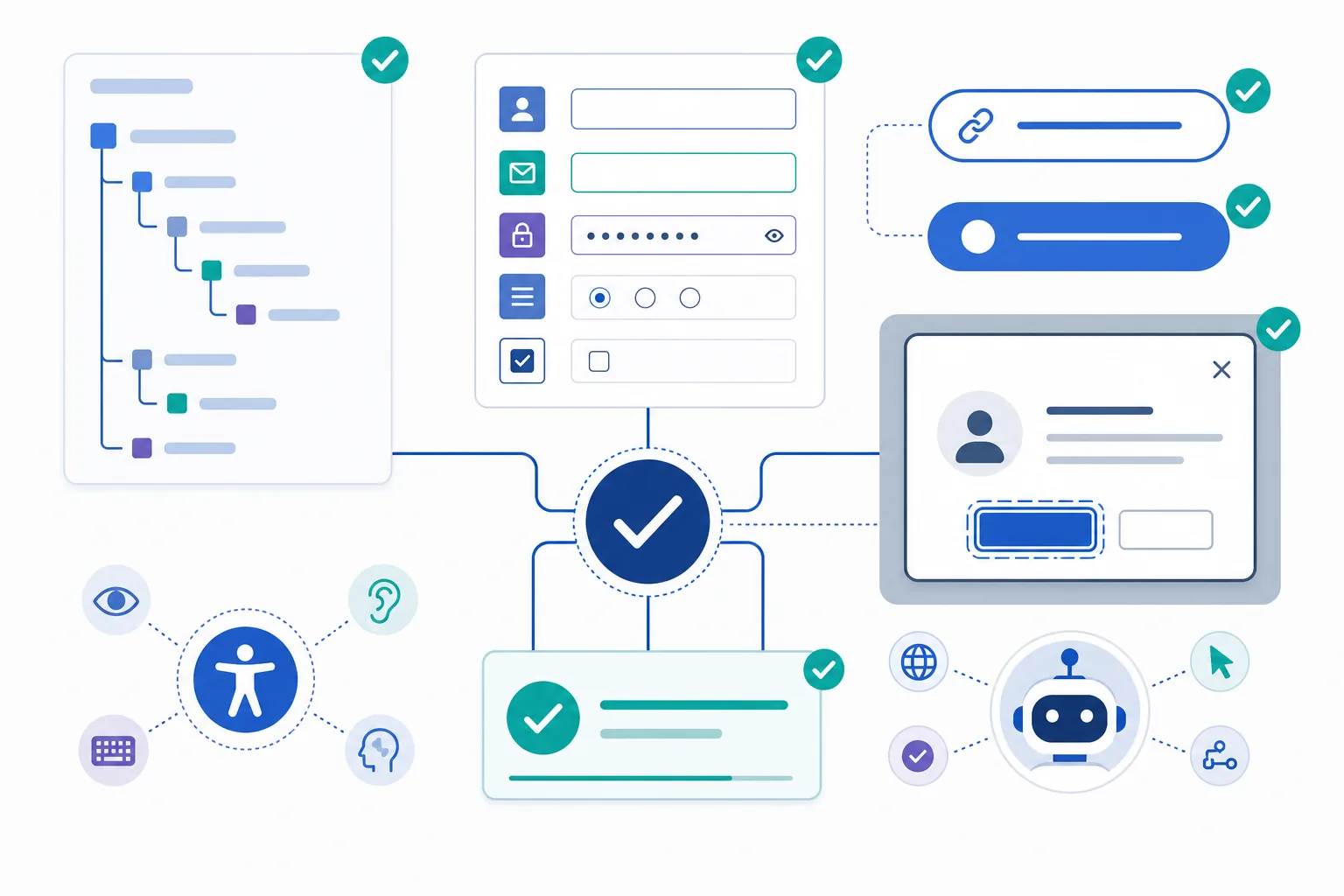
The same signals help people, assistive technology, and automated checks. A descriptive heading gives an agent a useful outline. A persistent form label explains an input. A named button reveals the action. An accessible dialog exposes context instead of hiding it behind a custom visual layer.
Document outline
Use one clear H1, logical H2/H3 nesting, and headings that describe the section rather than repeat a slogan.
Action names
Give links and buttons a specific destination or action. Avoid vague labels such as More, Go, or icon-only controls without an accessible name.
Input context
Keep labels, instructions, valid formats, and error messages available in the DOM instead of relying on placeholder text alone.
State changes
Expose loading, success, validation, and failure states so an agent can tell whether the task is complete or needs correction.
Approval boundaries
Make destructive or external actions visible and confirmable before a purchase, send, delete, upload, download, or account change.
Prepare a page state before you run the audit
A Lighthouse report is only useful when it describes the state that matters. Decide whether you are testing a public landing page, a logged-in workflow, a form with validation, a modal dialog, or a result screen. A page that is correct at the initial URL may still fail when a menu opens, a validation error appears, or a result is loading.
Use a safe test account or public fixture whenever possible. Do not give an experimental browser agent access to payments, customer records, private messages, production administration, or real credentials just to create a more realistic demo. Record the URL, viewport, language, authentication state, and Lighthouse version with the baseline.
- Choose the target stateName the exact page, open panel, form step, or result state an agent must understand.
- Create a safe fixtureUse public content or a least-privilege test account, and remove real personal or business data from the workflow.
- Capture the baselineSave the URL, viewport, locale, authentication state, browser build, Lighthouse version, and the initial report.
- Write the task outcomeDescribe what success looks like before you test: identify the main action, submit a valid form, recover from an error, or stop before a risky action.
How to run Lighthouse Agentic Browsing checks
Use Chrome DevTools, PageSpeed Insights, or the Lighthouse command line according to the page and environment you need to test. The exact category name, availability, and scoring can change with Lighthouse releases, so check the current Chrome for Developers documentation and record the version instead of treating an old screenshot as permanent product behavior.
The command line is useful for a repeatable public-page baseline. It is not a substitute for testing the actual interaction. After the report, inspect the failed element in the rendered DOM, open the relevant state, and run one realistic browser-agent task with a human watching the result.
- Open the exact stateLoad the same route, language, viewport, and interaction state that you captured in the baseline.
- Run the current buildUse DevTools, PageSpeed Insights, or the installed Lighthouse CLI, then note the report date and version.
- Trace each failureMap the finding to the actual heading, label, button, dialog, status node, or focus behavior in the page.
- Retest the taskAsk whether an agent can identify the action, understand the result, recover from an error, and stop before an irreversible action.
npx lighthouse https://example.com/ --view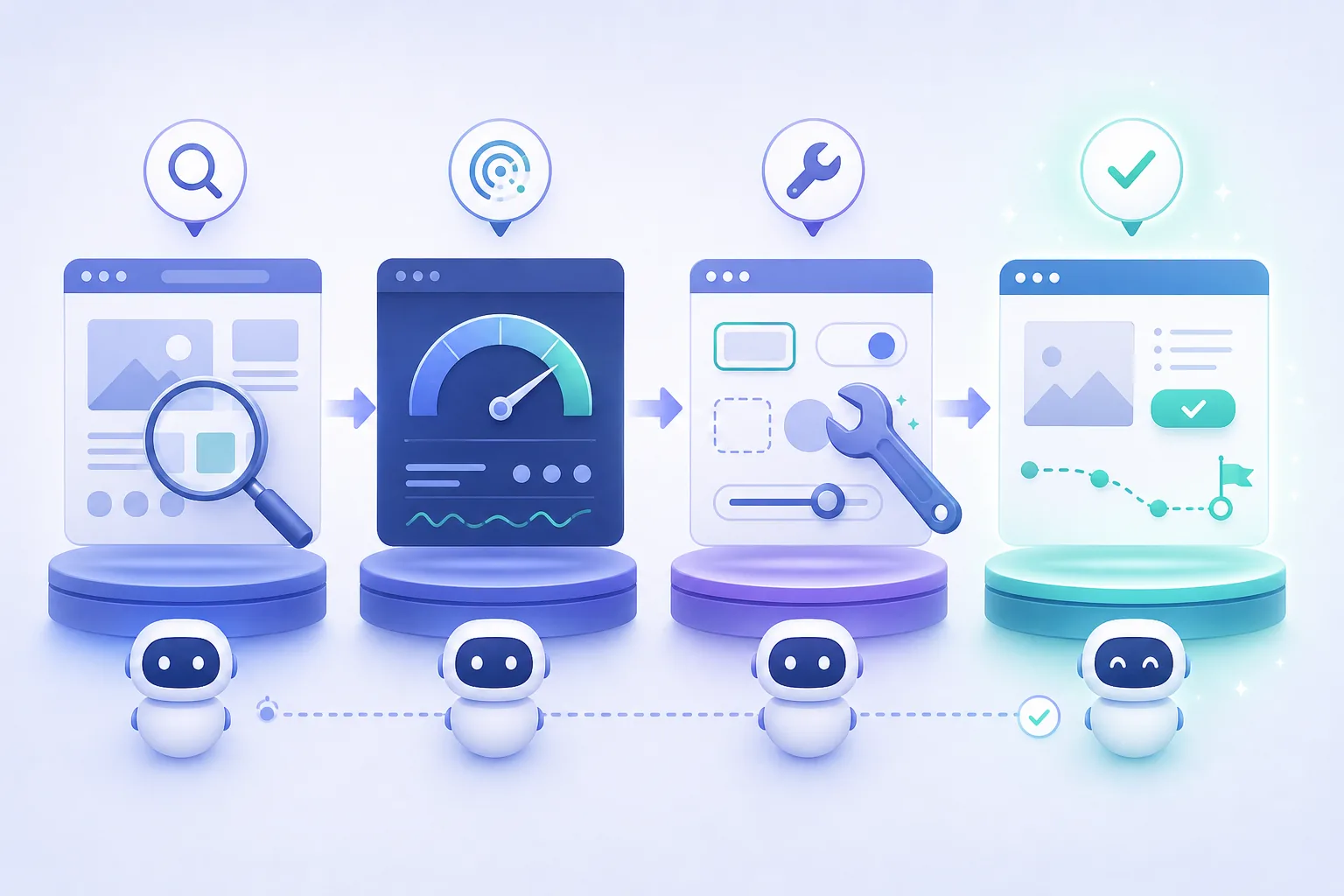
Use this website checklist to interpret failures
Work from the user task back to the markup. The right repair is usually a native HTML element, a persistent label, a clearer name, or an explicit state transition. If a control matters to the task, its purpose should be understandable without guessing from color, position, or an icon alone.
The acceptance column is deliberately behavioral. It keeps the page from passing a static audit while still confusing a real agent or a person using the keyboard.
| Area | Common signal | Practical repair | Acceptance test |
|---|---|---|---|
| Headings | The outline skips levels or the H1 says only Welcome | Use a descriptive H1 and headings that explain the task or section | A reviewer can name the page purpose and find the next relevant section |
| Links and buttons | Several controls say More, Continue, or use an unlabeled icon | Name the destination or action and keep the accessible name stable | The next action is clear before activation |
| Forms | Inputs depend on placeholders and errors appear only as color | Add persistent labels, instructions, format hints, and text errors | A user or agent can complete and correct the form without guessing |
| Dialogs | A modal has no name, focus stays behind it, or close behavior is unclear | Give the dialog a name, manage focus, and provide a clear close action | The user can identify the context, complete the task, or exit safely |
| Status | Loading or success is visible but not exposed to the DOM | Expose meaningful status text and distinguish success from failure | The agent can tell whether to wait, retry, correct, or stop |
| Risky actions | Download, send, delete, payment, or account changes happen immediately | Show the final action, scope, and confirmation boundary | The agent pauses for approval before an irreversible side effect |
Interpret the report without chasing a perfect score
Prioritize failures that block task comprehension or create unsafe side effects. A vague primary button on a checkout page matters more than a cosmetic difference in a secondary panel. A missing error message matters more than a decorative icon that an agent never needs to activate.
After each repair, rerun the audit and repeat the real task. Keep a short record of the finding, the source change, the before-and-after DOM behavior, and the reviewer decision. This evidence is more useful than a single number because it explains what changed and why the page is safer or easier to operate.
Fix first
Missing names, broken labels, unclear errors, hidden state, focus traps, and actions that can change external data without review.
Verify next
Keyboard navigation, visible focus, responsive layout, server-rendered answer text, and a realistic page task with a controlled test account.
Do not do
Do not add hidden keyword blocks, duplicate labels, fake controls, or text in an image just to make an audit report look better.
Does an agentic browsing audit affect SEO or AI visibility?
There is no direct ranking promise attached to an Agentic Browsing score. The useful SEO connection is indirect: a page that exposes crawlable text, descriptive headings, meaningful links, labeled controls, and clear states is easier for multiple kinds of users and systems to interpret.
Keep the main answer in server-rendered HTML, use a stable URL and canonical, make essential instructions visible as text, and use natural internal anchors. Do not turn an informational audit guide into a download page or claim that a Lighthouse result proves an AI overview, search ranking, or conversion outcome.
Crawlable answer
Put the definition, checklist, limitations, and FAQ in raw HTML so a crawler does not need client-side interaction to discover the answer.
Natural internal links
Link the audit guide to the broader agentic browsing explainer, security-risk guide, extension guide, and automation comparison where the reader needs the next decision.
Visible boundaries
Explain what the audit can and cannot prove. Clear caveats build more trust than a claim that every website needs an AI browser or a perfect score.
Agentic Browsing Audit FAQ
Practical answers for site owners deciding how to test Lighthouse signals and real browser-agent tasks.
What is an agentic browsing audit?
It is a review of whether a page exposes clear headings, controls, form context, state changes, and approval boundaries that an AI browser agent can understand and operate. It is a practical website-readiness check, not a product ranking.
How to use Lighthouse to test agentic browsing?
Open the exact page state in Chrome DevTools, PageSpeed Insights, or the current Lighthouse CLI, record the tool version, inspect each finding in the DOM, fix the underlying semantics, and retest one realistic task with a human reviewing the result.
Is there an official agentic browsing checker?
Lighthouse documentation is the authoritative place to check the current audit category and rules. Third-party agentic browsing checkers may be useful as exploratory tools, but do not treat an unofficial score as a safety certification or a direct Google ranking signal.
Does the Agentic Browsing score affect Google rankings?
Do not assume it does. The audit can overlap with good accessibility, crawlability, and page clarity, but a Lighthouse score is not a public guarantee of higher rankings or AI search visibility.
Do I need an AI browser to run the audit?
No. You can run Lighthouse and inspect the DOM without giving an agent access to the site. Use an AI browser or agent only for a controlled follow-up task, with a safe fixture and approval before any external side effect.
Primary sources to recheck
Lighthouse categories and scoring can change. Use the official documentation for the current implementation details.
- Chrome for Developers: Agentic Browsing audits — Official Lighthouse guidance for the audit category.
- Chrome DevTools: Lighthouse release notes — Official release context; verify the version used by your report.
- GoogleChrome/lighthouse — Primary-source project and current implementation history.