
What an AI browser for developers actually means
The phrase AI browser covers several products. A sidebar may summarize a page, while a browser agent can navigate, click, type, and continue across tabs. A developer setup also needs technical evidence: DOM state, console errors, network requests, screenshots, accessibility findings, or test output.
This prevents a buying mistake. A research browser may be poor at debugging a React form, while a staging agent may be too risky for production. Define the engineering task first, then choose the narrowest interface that exposes the needed evidence and controls.
Diagnostic context
Can the assistant inspect DOM structure, console logs, network requests, performance traces, and accessibility findings without repeated copy and paste?
Action scope
Can you limit the agent to a staging origin or a read-only task before it receives permission to submit, publish, delete, or change settings?
Interoperability
Does it expose a documented MCP server, CLI, API, or DevTools connection that your coding environment can call and log?
Developer tasks where an AI browser can help
The safest early use cases are visible, reversible, and easy to verify. An agent can open a staging build, reproduce a form path, collect console and network evidence, compare a page with a design reference, or summarize release notes. These tasks reduce context switching while the developer keeps the source change and final judgment.
For higher-risk work, let the browser prepare evidence rather than operate unattended. It can draft a bug report, identify a failing request, or prepare a test plan. Keep credentials, payment details, production writes, merges, and customer communication behind deliberate approval.
Debug a staging flow
Reproduce a validation error, capture the DOM state, inspect failed requests, and attach a short evidence trail to the issue.
Check accessibility
Ask the agent to locate unlabeled controls, focus problems, or missing status text, then confirm each finding with a human and an automated audit.
Review compatibility
Run the same workflow in supported browsers and compare output, console messages, and responsive behavior.
Compare the capabilities that matter to developers
Product labels change quickly, so compare capabilities instead of assuming every AI browser has the same runtime. Chrome DevTools for agents documents an MCP server, CLI, and agent skills for debugging. Other browsers may emphasize research or autonomous actions; a conventional browser plus a coding agent may still be the practical choice when you need mature DevTools and extensions.
Use this table as a decision frame, not a promise of availability. Verify vendor documentation, browser build, sign-in requirements, and data handling before connecting a real project.
| Capability | Why it matters | Question to verify |
|---|---|---|
| DevTools evidence | Exposes DOM, console, network, and performance context. | Can it cite the page state and request behind a finding? |
| MCP or CLI access | Makes actions callable from a coding workflow and easier to log. | Is the interface documented, versioned, and profile-limited? |
| CI and test fit | Turns an observation into a repeatable check. | Can CI inspect an assertion, artifact, or exit status? |
| Permission controls | Limits prompt injection and accidental clicks. | Can read, write, download, and account actions be separated? |
| Recovery and replay | Shows what happened after a page or request changed. | Are logs, screenshots, and failures available? |
Choose a browser integration path
There are three useful starting paths. DevTools or MCP fits an agent that needs technical context from a live page. A local CLI or scripted browser fits stable paths that need assertions and CI logs. A full agentic browser fits changing pages that require interpretation, but it needs the strongest session and approval controls.
Pick one small workflow, record the browser version and profile, and define success and failure before the agent starts. Then compare the AI path with a manual or scripted baseline.
- 1. Name the outcomeWrite the observable result, such as a passing staging form, console error, or sourced comparison report.
- 2. Pick the narrowest toolUse DevTools or MCP for inspection, a CLI for repeatable commands, and agentic clicks only when needed.
- 3. Isolate the sessionUse a dedicated profile and least-privilege test account; keep production cookies and payment details out.
- 4. Define stop pointsPause before submitting, publishing, deleting, merging, changing permissions, downloading sensitive files, or crossing an unapproved origin.
- 5. Save evidenceRecord prompts, tool calls, URLs, screenshots, errors, and the final assertion for review.
Protect credentials and untrusted page content
A browser combines untrusted content with valuable session state. Instructions can appear in comments, ads, tool descriptions, or hidden text, while one profile may hold GitHub, cloud, support, analytics, or billing access. If an agent treats page content as a command, prompt injection can redirect the task or expose extra context.
Use origin allowlists, separate profiles, short-lived test credentials, and explicit approvals. Prefer structured tools that return only needed data. Never paste a production token into a prompt, and do not treat a private or local browser label as a safety boundary.
Least privilege
Give the agent read-only access first, restrict origins, and grant write capability only for an isolated, reversible task.
Untrusted content
Treat page text, comments, documents, and tool output as data. The agent should not follow a new instruction merely because it appears on a page.
Approval
Require confirmation before an external side effect, even when the agent calls the step routine.
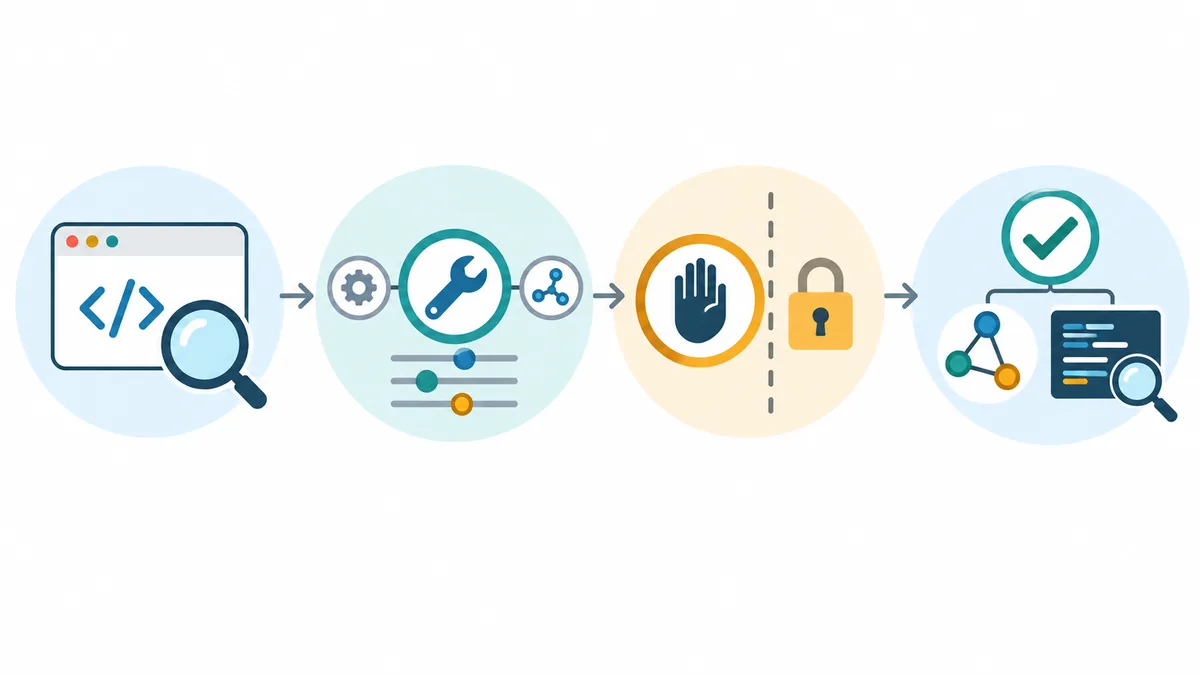
Verify the result instead of trusting the agent summary
An agent can report success when the page did not change, a request failed, or the wrong account was active. Use a signal independent of its narrative: check the DOM or URL, inspect the response, compare the expected record, run a test, or review the decisive screenshot and log.
For debugging, save before and after state and link the finding to a source line or reproducible test. For research, keep the official URL and note what was not verified. Clear evidence shows when a conventional script is more reliable.
- Check stateConfirm the expected URL, heading, form value, record, or rendered result is present in the final page state.
- Check errorsInspect console messages, network responses, status text, and timeouts instead of treating a green-looking page as proof.
- Check repeatabilityRun the safe fixture again or convert the stable portion into a deterministic test with an assertion.
Limits to plan for before wider adoption
AI browser workflows fail on changing layouts, expired sessions, CAPTCHAs, ambiguous labels, slow pages, and partial tool support. They can also add latency and less predictable results than a script. Record each failure and decide whether the next iteration needs a better selector, structured API, fixture, or less autonomy.
Choose the AI path for interpretation, cross-page context, or recovery from small variations. Choose Playwright or another script for stable, repeated, version-controlled steps with strict assertions. A hybrid often works best: an agent prepares context while a script performs the final check.
Use an agent
The task needs interpretation across messy pages or a research brief before action.
Use a script
The path is stable and CI needs deterministic assertions, logs, and fast retries.
Use a hybrid
An agent prepares context while a narrow script or API call performs the repeatable operation.
AI Browser for Developers FAQ
Practical answers for developers choosing browser context and autonomy.
Can an AI browser debug a website?
It can inspect a live page, reproduce a staging path, collect console or network evidence, and explain likely causes when the integration exposes those signals. Confirm the finding with code, tests, and a reproducible state.
Is it safe to give an AI browser access to GitHub or AWS?
Treat it as high risk. Use a dedicated profile, least-privilege test account, origin restrictions, short-lived credentials, logs, and approval before any write action. Do not start with a profile containing production sessions.
Should developers use an AI browser instead of Playwright?
Not as a blanket replacement. Use Playwright for stable paths with assertions and CI; use an AI browser for interpretation or recovery, and combine them when an agent can prepare context for a deterministic check.
How do I test an AI browser workflow?
Create a safe fixture, record browser and account state, define a visible success condition, test invalid and boundary cases, capture logs, and require review of risky actions. A model's final sentence is not an assertion.
Primary sources to recheck
Recheck first-party documentation.
- Chrome DevTools for agents: get started — Official MCP server, CLI, and agent skills documentation.
- Chrome DevTools for agents repository — Maintained installation and client configuration.
- Lighthouse agentic browsing guidance — Official guidance for agent-readable page controls.