AI browser safety guide
Browser Agent Security Risk: What to Check Before You Let an AI Browser Act
AI browser agents can read pages, summarize private tabs, click buttons, download files, and sometimes complete multi-step tasks. That power is useful, but it also creates a new security boundary: untrusted web content can influence an assistant that may have access to your browser session.

The Short Answer
The biggest browser agent security risk is not that the AI browser is automatically unsafe. The real risk is that the agent sits between untrusted websites and your authenticated browser context. If a malicious page can convince the agent to reveal data, follow hidden instructions, download a file, or change account settings, the browser becomes part of the attack path.
A safe AI browser agent should separate reading from acting. It should ask before submitting forms, sending messages, buying items, changing account state, downloading files, or using private data from other tabs. The more autonomous the browser becomes, the more important permissions, logs, account separation, and human review become.
For everyday research, page summaries, and low-risk browsing, AI browser agents can be practical. For admin consoles, finance tools, customer data, healthcare portals, legal documents, and publishing systems, use a stricter setup: dedicated profiles, limited page access, manual approval, and no unattended actions.
Browser Agent Security Risk Matrix
Use this table to decide whether a browser agent should be allowed to read, reason, or act inside a workflow.
| Risk | How it happens | What to check | Safer default |
|---|---|---|---|
| Indirect prompt injection | A webpage, email, document, or hidden page text tells the agent to ignore your instruction, reveal context, or perform a different action. | Whether the browser treats page text as untrusted input and requires confirmation before sensitive actions. | Let the agent summarize, but require approval before it submits, sends, purchases, deletes, or changes settings. |
| Private data exposure | The agent can read authenticated pages, account dashboards, documents, browser history, or other open tabs and include that content in model requests or summaries. | Page access controls, retention settings, training settings, workspace policy, and whether private tabs are excluded. | Use a separate profile for AI tasks and keep banking, admin, health, and customer-data sessions outside it. |
| Unsafe downloads and file handling | An agent follows a page recommendation, downloads a file, opens an installer, or moves a file without enough verification. | Download prompts, file reputation checks, source verification, and whether the browser can launch local files. | Block automatic downloads and manually verify the official source before opening any file. |
| Account-changing actions | The agent clicks through a workflow that sends a message, posts content, updates settings, grants access, or spends money. | Action logs, approval checkpoints, reversible steps, and whether risky domains are excluded. | Require explicit human confirmation at the final step and use read-only access when possible. |
| Overtrust in generated summaries | The agent summarizes a page or comparison incorrectly, misses fine print, or blends source facts with model assumptions. | Citation display, source links, uncertainty wording, and whether the answer can be traced back to visible page text. | Use summaries for triage, then verify critical claims in the original source before acting. |
Why Prompt Injection Matters in AI Browsers
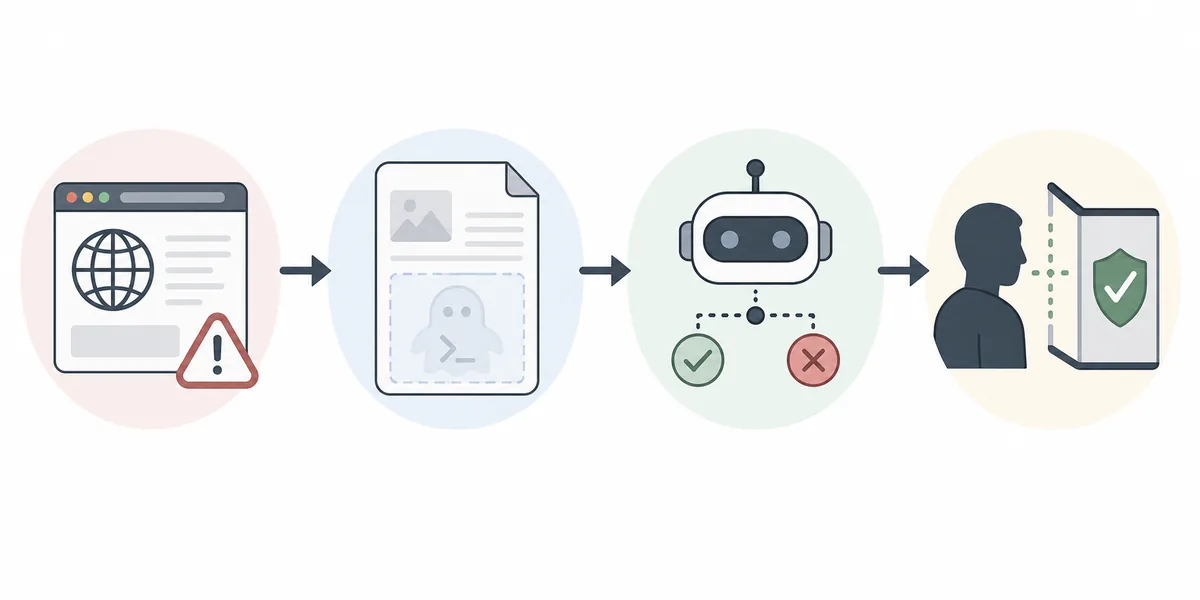
Prompt injection is especially important for browser agents because the agent reads content from pages that you do not control.
Web content is not a trusted instruction source
A webpage can contain visible text, hidden text, comments, injected ads, or user-generated content. The agent should not treat any of that as equal to your direct instruction.
The risky path is usually multi-step
A malicious instruction may first ask the agent to open another page, copy data, change a filter, or download something. Guardrails need to cover the chain, not just the first click.
Approval must be specific
Good approval prompts say what will happen, which site is involved, what data is used, and what changes after confirmation. A generic continue button is not enough for sensitive work.
Safe Settings Before You Use a Browser Agent
Start with conservative defaults, then loosen permissions only for workflows that have proven low risk.

Use a dedicated browser profile
Keep AI-agent browsing separate from your primary browser profile. Do not leave banking, admin, healthcare, or customer-data sessions open in the same profile used for agent tasks.
Turn page access into an explicit choice
Prefer browsers that make it clear when the agent can read the current page, other tabs, files, history, or clipboard content. Disable broad access until a workflow needs it.
Require approval for state changes
Any action that sends, posts, buys, deletes, grants access, changes settings, installs software, or submits private data should pause at a human review checkpoint.
Review downloads manually
Do not allow unattended file downloads or installer launches. Check the domain, filename, signature, and reputation before opening software suggested by a page or agent.
Keep logs and rollback paths
For team workflows, preserve a record of pages visited, actions suggested, approvals granted, and final changes. Logs make mistakes easier to diagnose and reverse.
Where Browser Agents Are Lower or Higher Risk
The same AI browser can be reasonable in one workflow and too risky in another. Classify the task before giving the agent more autonomy.
Lower risk: public research
Comparing public pages, summarizing documentation, collecting vendor notes, and drafting research summaries are good starting points when no private account data is exposed.
Medium risk: assisted publishing
Drafting copy, filling non-sensitive forms, or preparing a post can be useful, but the final submit or publish action should stay manual.
High risk: private dashboards
Finance systems, customer records, admin panels, healthcare portals, legal tools, and source-code secrets need strict isolation or no agent access at all.
Related Guides
Use these pages to understand the broader AI browser category before choosing a setup.
AI Agent Browser vs Browser Automation
Compare agent-driven browsing with Playwright, Puppeteer, and Selenium-style automation.
Best Agentic Browser
See how agentic browsers compare by action controls, workflow fit, and safety tradeoffs.
Browsers Without AI
Learn when to choose a low-AI browser or disable browser AI features.
Useful Security References
These references explain prompt injection, AI security risk categories, and browser-agent safety research in more detail.
Try AI-Assisted Browsing With Clear Boundaries
Tabbit Browser is designed for AI-assisted browsing, research, and task workflows. Start with public research, review permissions, and keep sensitive account work behind explicit approval.
FAQ
Short answers about browser agent security risk, AI browser privacy, and safe defaults.
What is the biggest browser agent security risk?
The biggest risk is that an AI browser agent may read untrusted web content and then act inside an authenticated browser session. That creates a path for prompt injection, private data exposure, unsafe downloads, or account-changing actions if approvals are weak.
Are AI browser agents unsafe by default?
No. They can be useful for research and assisted browsing, but they need clear boundaries. The risk rises when the agent can read private pages, use other tabs as context, submit forms, download files, or change account state without specific approval.
How do I reduce AI browser security risks?
Use a dedicated browser profile, limit page and tab access, require approval for risky actions, block unattended downloads, verify official sources, and keep sensitive dashboards outside the agent workflow.
What is prompt injection in an AI browser?
Prompt injection happens when page content tries to give the AI agent instructions that conflict with the user goal. In a browser, those instructions can appear in websites, documents, emails, comments, ads, or hidden text.
Should teams allow browser agents in admin tools?
Only after a risk review. Admin, finance, customer-data, healthcare, legal, and publishing tools should require strict approvals, logs, least-privilege accounts, and ideally a separate browser profile or isolated environment.