Privacy-first browser choice
Browsers Without AI: How to Choose a Low-AI Browser or Turn AI Features Off
If you searched for a browser without AI, you probably want fewer unsolicited summaries, less page context sharing, and more control over when assistants can read or act. This guide explains the practical choices: use a browser with minimal built-in AI, disable optional AI features in a mainstream browser, or choose an AI browser only when the workflow needs clear approvals and boundaries.
The Short Answer
The best browser without AI is usually the one where AI features are optional, visible, and easy to turn off. Firefox is a strong choice for users who want a mainstream browser with explicit controls around AI features. Brave can also work when you want a privacy-focused browser, but you should review Brave Leo settings because Leo is a built-in assistant. DuckDuckGo is useful for people who want private search and a browser that keeps AI experiences separate and optional rather than always pushing generated answers into every search.
If your current browser already works, switching is not the only answer. Many users can keep Chrome, Edge, Brave, Firefox, or another browser and turn off AI sidebars, assistant shortcuts, page-summary features, AI search modes, writing helpers, and history/context sharing. The important step is to check the exact setting names after each major browser update, because vendors often move AI features from experimental pages into regular menus.
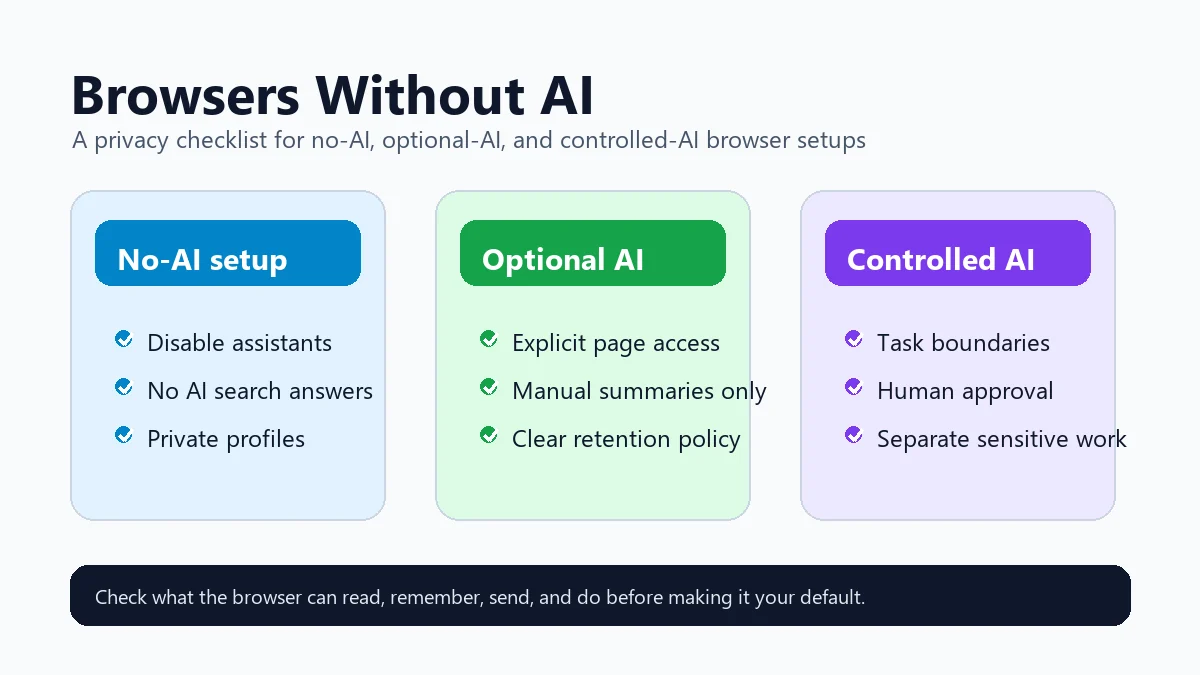
A no-AI browser is the right choice for sensitive accounts, regulated work, school devices, low-distraction reading, and users who simply do not want generated answers between them and the open web. A controlled AI browser is still useful when you deliberately want research summaries, multi-page comparison, or background task execution. In that case, use AI only with clear permissions, human approval for account-changing actions, and a separation between private browsing and delegated workflow tasks.
For search queries such as browser without AI, no AI browser, non AI browser, and browser no AI, the useful distinction is feature control rather than a label on the homepage. A browser can feel AI-free if AI summaries, writing helpers, page-context access, sidebars, and AI search answers are off by default or easy to disable. It is not a good fit if the assistant can read the current page, open history, or suggest actions without a clear permission step.
How to Judge Whether a Browser Is Really No-AI Enough
Marketing labels are less important than what the browser can read, remember, send, and act on. Audit these points before changing your default browser.
Check page-reading permissions
Look for settings that let an assistant read the current page, open tabs, PDFs, browsing history, clipboard content, or saved files. A browser is safer when page access is explicit and off by default.
Separate search AI from browser AI
Some users dislike AI answers in search results more than AI inside the browser shell. Check search engine defaults, AI answer modes, address-bar suggestions, and whether a no-AI search page or extension is available.
Review retention and training claims
Read how prompts, page context, chat history, and generated answers are stored. Prefer products that clearly state whether chats are retained, used for model training, or shared with model providers.
Require approval before actions
If a browser agent can fill forms, click buttons, send messages, purchase items, or change account settings, treat it differently from a simple assistant. Risky actions should pause for human review.
Use separate profiles for work and experiments
Keep banking, healthcare, customer dashboards, school systems, and admin tools in a conservative profile. Test AI features only in a separate profile with low-risk data.
Recheck after major updates
AI features are moving quickly. A browser that felt quiet six months ago may add sidebar prompts, writing tools, or AI search surfaces after an update.
How to Turn Off Browser AI Features
Exact labels differ by browser, but the same audit path works across Firefox, Brave, Edge, Chrome-based browsers, and privacy browsers.
Start in browser settings
Search settings for AI, assistant, Copilot, Leo, chatbot, writing, summarize, compose, suggestions, history, and page context. Disable features that read pages or inject generated answers.
Change the default search experience
If the search page is the problem, choose a search engine or no-AI search mode that does not show AI answers by default. Confirm both desktop and mobile address-bar settings.
Audit extensions and sidebars
Browser extensions can add AI even when the browser itself is quiet. Remove AI writing assistants, summarizers, meeting helpers, and sidebars you do not actively use.
Control account and sync settings
Signed-in browsers may sync history, tabs, prompts, or preferences. Review sync categories and organization policies if you use a work or school account.
Test with a sensitive-page drill
Open a private dashboard, document, or account page and verify that no assistant button asks to summarize it automatically. Do not enter real secrets during this test.
Official Sources Worth Checking
Browser AI controls change quickly. Use official documentation and product pages before deciding that a browser is suitable for sensitive use.
Want AI Only When It Has a Clear Job?
Tabbit Browser is not a no-AI browser. It is for people who intentionally want AI-assisted research, reporting, and browser task workflows with visible boundaries. Use a low-AI browser for private accounts, and use Tabbit when delegation is the point.
FAQ
Short answers for people searching for browsers without AI, no-AI search, and browser AI privacy controls.
Is there a browser with no AI at all?
It is harder to guarantee that in 2026 because many browsers add optional AI features, AI search integrations, or assistant shortcuts. The practical goal is to choose a browser where AI is optional, visible, and easy to disable.
Which browser is best if I do not want AI summaries?
Start with Firefox or a privacy-focused browser setup, then disable AI chat, summary, and search-answer features. Also check extensions, because many AI summaries come from add-ons rather than the browser itself.
Is Brave a browser without AI?
Brave includes Brave Leo, so it is not strictly a no-AI browser. It can still be a good privacy-focused choice if you do not use Leo and you review its AI-related settings.
Should I disable AI in Edge or switch browsers?
If you need Edge for Windows, Microsoft 365, or enterprise compatibility, first disable or restrict Copilot, sidebar, search, and page-context features. Switch only if policy or settings do not give enough control.
When does an AI browser still make sense?
Use an AI browser when you intentionally want research, comparison, summarization, or task execution. Keep sensitive accounts in a separate low-AI browser profile and require approval before any browser agent changes data.
What is the best browser without AI features?
There is no universal winner. Firefox is a good starting point for many users because AI-related features can be reviewed and controlled, while privacy browsers such as DuckDuckGo can keep AI experiences separate. The best choice is the one where AI page access, search answers, and writing helpers are visible and optional.
How do I keep Chrome or Edge from feeling like an AI browser?
Disable AI search answers, sidebars, compose tools, page summaries, and history-based suggestions where your region and version expose those controls. Recheck after major browser or operating system updates because AI features can move between experimental and normal settings.
Can I use a no-AI browser for sensitive work and keep an AI browser separately?
Yes. Keep banking, admin, school, health, or client accounts in a low-AI profile, then use a separate AI-browser profile for public research and reversible tasks. Review our Tabbit Browser safety guide before allowing an agent to access private accounts or perform actions.