Student AI browser guide 2026
Best AI Browser for School Students: Safe Study Picks for 2026
The right AI browser for school should help students understand sources, summarize reading, organize tabs, and draft study notes without hiding work, leaking private school data, or encouraging shortcuts that break classroom rules.
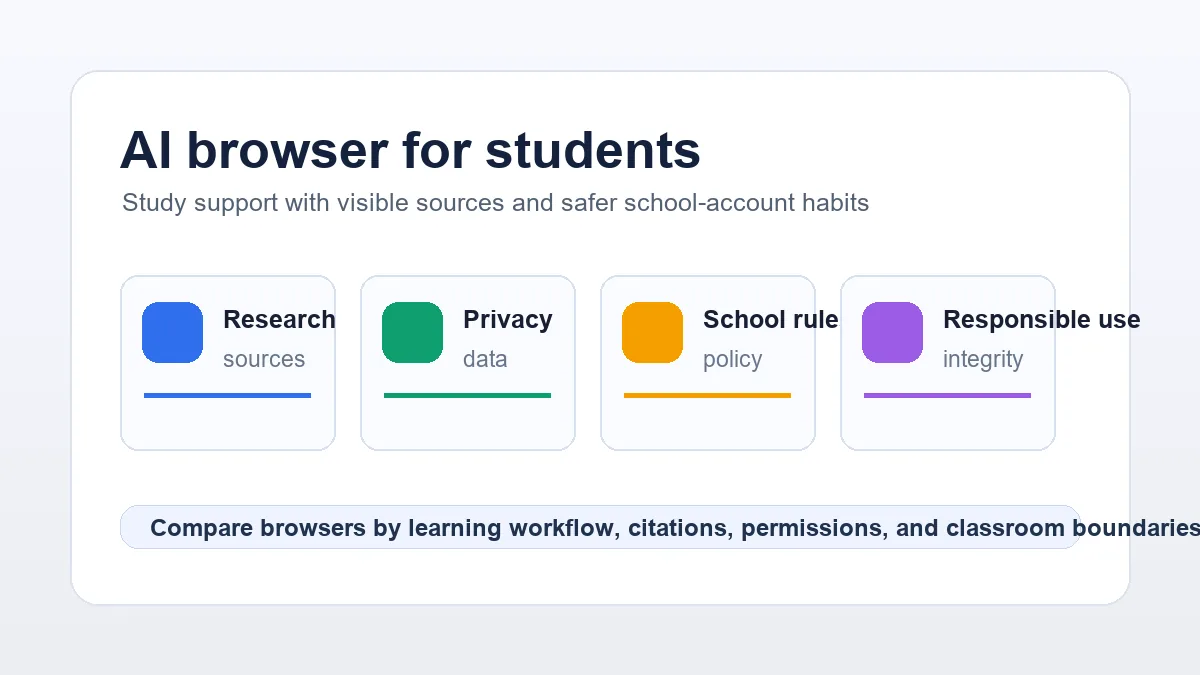
The Short Answer
For most students, the best AI browser is not the most autonomous one. It is the browser that explains pages clearly, keeps sources visible, lets the student write the final answer, and stays within school account rules. A good student setup should support reading, note-taking, source comparison, vocabulary help, and study planning before it supports full task automation.
If a student mainly needs research help, Perplexity Comet and ChatGPT Atlas are strong reference points because they bring page-aware AI into browsing. If privacy is the priority, Brave Leo is a safer starting point because it keeps AI assistance closer to a controlled browser helper. If a student or teacher wants AI-assisted workflows, tab organization, and repeatable research tasks, Tabbit Browser is worth testing with clear approval boundaries.
This page does not replace a teacher's policy. It gives students, parents, and schools a practical checklist: verify school rules, avoid entering protected student data, keep citations visible, and use AI to understand material rather than to submit hidden work.
Best AI Browsers for Students Compared
Use this shortlist as a study-safety filter. The right browser depends on age, school policy, account type, and whether the task is reading, research, writing, or automation.
| Browser | Student fit | School fit | Caution |
|---|---|---|---|
| Tabbit Browser | Useful for organized research, tab groups, no-code browser tasks, and AI-assisted study workflows. | Best when students can use a personal browser with clear download and account rules. | Keep approvals on for actions such as downloads, logins, forms, and account changes. |
| Perplexity Comet | Strong for answer-first research, page questions, and comparing sources during homework planning. | Good for older students who need cited research support and can evaluate sources. | Students still need to verify citations and should not paste private school records into prompts. |
| ChatGPT Atlas | Good for ChatGPT-first learners who want help summarizing pages, brainstorming outlines, and studying context. | Works best when the school already allows ChatGPT or has a clear AI use policy. | Check memory, account, and page-context settings before using it with school accounts. |
| Brave Leo | Good for private page summaries, definitions, and low-friction AI help inside a familiar browser. | A conservative option for students who need AI assistance without heavy automation. | It is less focused on multi-step research tasks than agent-first browsers. |
| Microsoft Edge Copilot | Useful on Windows school devices for PDFs, web pages, and Microsoft 365 study workflows. | Often easiest where school devices already use Microsoft accounts and admin policies. | Features can depend on region, age settings, tenant policy, and school account permissions. |
What to Check Before a Student Uses an AI Browser
Student browser choice is partly technical and partly policy. Check these points before making any AI browser a default study tool.
Start with the classroom rule
Ask whether AI can be used for brainstorming, summarizing, translation, citation checks, or drafting. If the rule is unclear, students should cite assistance or keep AI use to study notes instead of submitted answers.
Protect school and personal data
Do not paste grades, student IDs, private emails, health information, payment details, or classmate data into an AI prompt. A good student AI browser makes page access and history settings easy to review.
Keep sources visible
Students should save links, quote only what they can verify, and separate source notes from generated summaries. Browser AI is most useful when it helps compare sources instead of replacing them.
Test the school device first
Chromebooks, managed Windows laptops, and school networks may block installers, extensions, sync, or AI features. Test on the actual device and account before recommending a browser.
Avoid over-automation
AI agents can save time, but school work should preserve student thinking. Use automation for organizing research, not for hiding the learning process or submitting work the student cannot explain.
A Responsible AI Browser Workflow for Homework
This workflow keeps the student in control while still making AI useful for reading-heavy assignments.
Collect sources first
Open official, library, classroom, or reputable reference pages before asking the browser AI for a summary. This prevents the assignment from starting with unsourced generated claims.
Ask for explanation, not the final answer
Use prompts such as 'explain this paragraph at a ninth-grade reading level' or 'make a study outline from these sources' instead of 'write my assignment'.
Compare and verify
Check whether the AI summary matches the source page. Mark uncertain facts, save URLs, and rewrite notes in the student's own words.
Write the final work manually
The student's final paragraph, proof, lab answer, or reflection should be written and checked by the student. AI can help revise clarity, but it should not replace understanding.
Related AI Browser Guides
Use these pages when the student question becomes a broader browser, privacy, or automation decision.
Official Sources to Recheck
AI browser features, education policies, and privacy settings change quickly. Recheck official documentation before adopting a browser for school use.
Try a Student-Friendly AI Browser Workflow
Tabbit Browser can help organize research, summarize study pages, and manage repeatable browser tasks. Start with safe school boundaries, then test the workflow on a real assignment.
FAQ
Short answers for students, parents, and teachers comparing AI browsers for school.
What is the best AI browser for school students?
For most students, choose the AI browser that best matches school rules, privacy needs, and study workflow. Tabbit Browser fits organized AI-assisted workflows, Perplexity Comet fits research, ChatGPT Atlas fits ChatGPT-first studying, Brave Leo fits privacy-conscious help, and Edge Copilot fits many Microsoft school environments.
Can students use an AI browser for homework?
Only within the teacher's or school's rules. A safe use is summarizing a source, making a study outline, explaining a hard paragraph, or checking clarity. Risky use is submitting AI-written answers, hiding AI help, or using AI during restricted tests.
Is a browser with AI safer than a separate AI app?
It can be easier because the AI can work with the current page, but it also raises privacy questions. Students should review page access, history, memory, and account settings before using any AI browser with school accounts.
Which AI browser is best for Chromebook students?
Managed Chromebooks often restrict installers and extensions, so the best option depends on what the school allows. Browser-based AI tools, Edge Copilot on supported devices, or a school-approved browser may be more realistic than installing a new desktop browser.
Should parents let younger students use AI browsers?
Younger students should use AI browsers with adult guidance, school-approved accounts, and clear rules about privacy, citations, and original work. For elementary or middle school, focus on explanation and reading support rather than automation.