Windows AI browser guide 2026
Best AI Browser for Windows: Which One Should You Use on PC?
Windows users have more AI browser choices than ever: Edge Copilot, AI-native research browsers, privacy-first assistants, and agent-first browsers like Tabbit. The right choice depends on whether you need safe daily browsing, research summaries, or delegated browser tasks.
The Short Answer
For most Windows users, the best AI browser is the one that fits the job you do every day. Edge Copilot is the easiest starting point because it is already close to the Windows and Microsoft 365 ecosystem. Brave Leo is a safer first choice when privacy matters more than advanced agent actions. Perplexity Comet and ChatGPT Atlas are stronger when your main work is research, source comparison, and writing with page context.
Tabbit Browser is the Windows choice to consider when you want an AI browser that can move beyond summaries. It is designed around AI-assisted browsing, background tasks, natural-language automation, multi-model access, and workflow delegation. That makes it a relevant option for users searching for AI browsers for Windows, not just a browser with another chatbot sidebar.
Do not choose only by brand name. Before you replace Chrome or Edge on a PC, check installer source, Windows version, account permissions, page-reading controls, and whether risky actions such as downloads, payments, account changes, or publishing require review. AI browsing is useful only when the browser stays under your control.
Best AI Browsers for Windows Compared
Use this table as a practical shortlist. Platform support, pricing, and AI limits can change quickly, so recheck official sources before standardizing a browser for work or school.
| Browser | Windows fit | AI strength | Watch out for |
|---|---|---|---|
| Tabbit Browser | Best for Windows users who want an AI-native browser for background tasks, research, tab organization, and no-code workflow automation. | Natural-language task execution, multi-model AI access, intelligent tab groups, and workflow-oriented agent behavior. | Review prompts and approvals before allowing an agent to touch private accounts, downloads, forms, or business data. |
| Microsoft Edge Copilot | The lowest-friction option for Windows users already signed into Microsoft services or managed devices. | Page summaries, sidebar help, PDF support, and Microsoft account context when enabled. | Admin policy, account region, and data settings can change what Copilot can access or remember. |
| Perplexity Comet | Strong for PC users who spend the day searching, comparing sources, and turning web pages into answers. | Answer-first browsing, page Q&A, cross-tab research, and citation-heavy workflows. | Confirm current Windows availability, usage limits, account controls, and privacy settings before using it for sensitive research. |
| ChatGPT Atlas | Best for people who already rely on ChatGPT and want assistant continuity while browsing on Windows. | Deep ChatGPT context, page-aware help, drafting, comparison, and agent-style browsing when supported. | Check platform support, workspace policy, browser memory, and approval checkpoints for actions. |
| Brave Leo | Good for users who want built-in AI help on Windows without moving to an aggressive agent browser. | Privacy-forward AI assistance, page summaries, writing help, and multi-model options. | Better for assistance than delegation. It is less suited to multi-step autonomous browser workflows. |
| Dia | Useful to watch if you want a calmer AI-native workspace for tabs, writing, and knowledge work. | Context-aware browsing, writing support, and work-oriented suggestions. | Validate Windows availability, import needs, team controls, and long-term fit before replacing a stable browser. |
What Windows Users Should Check First
The best AI browser for Windows is not always the most powerful one. It is the browser whose permissions, installer, and workflow controls match your PC and your risk level.
Use the official installer
Download from the official product page or a clearly controlled release host. Avoid ad-heavy mirrors, misspelled product pages, or installers that bundle unrelated software.
Check Windows version and architecture
Most modern AI browsers target 64-bit Windows 10 or Windows 11. If you are on an older PC, a locked-down work laptop, or Windows on ARM, confirm compatibility before installing.
Require review for risky actions
Any AI browser that can act on pages should pause before payments, account changes, file downloads, publishing, or form submissions. Treat approval controls as a core feature.
Separate public and private browsing
Use a clean profile when testing an AI browser. Keep banking, admin dashboards, private email, and confidential customer data away from experiments until permissions are clear.
Respect workplace policy
On managed Windows devices, check IT policy before installing a new browser or enabling AI page-reading features. Enterprise controls matter more than consumer feature lists.
Test one real workflow
Try summarizing a page, comparing several sources, drafting a response, and preparing a safe task. The best browser becomes obvious when latency, accuracy, and recovery behavior are visible.
Windows Workflow Visuals
These visuals show the difference between a general AI-browser decision framework and the real Tabbit workflow surface used for PC productivity.
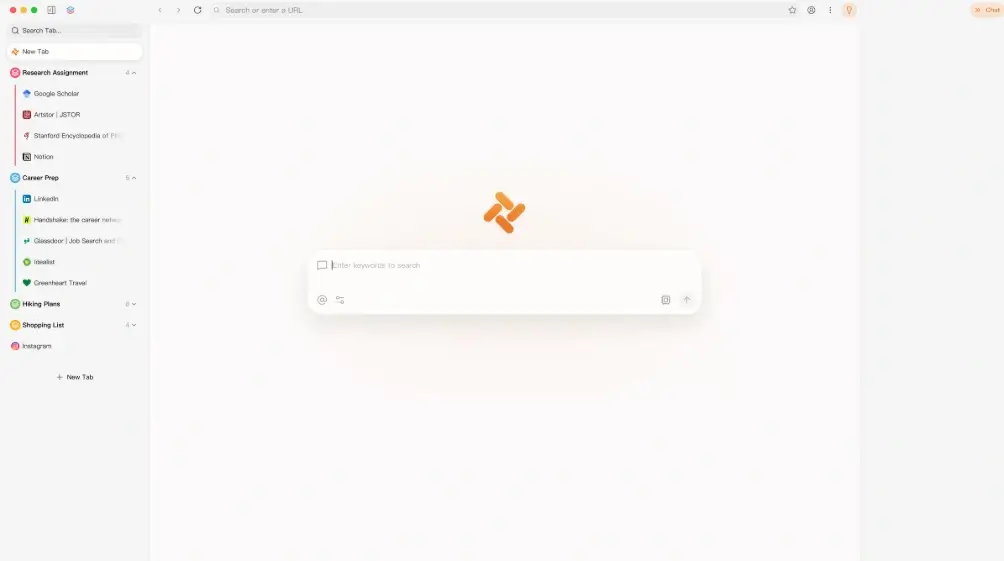
AI-native browser workspace
Tabbit is positioned for people who want the browser to help organize and execute work, not only answer questions in a sidebar.
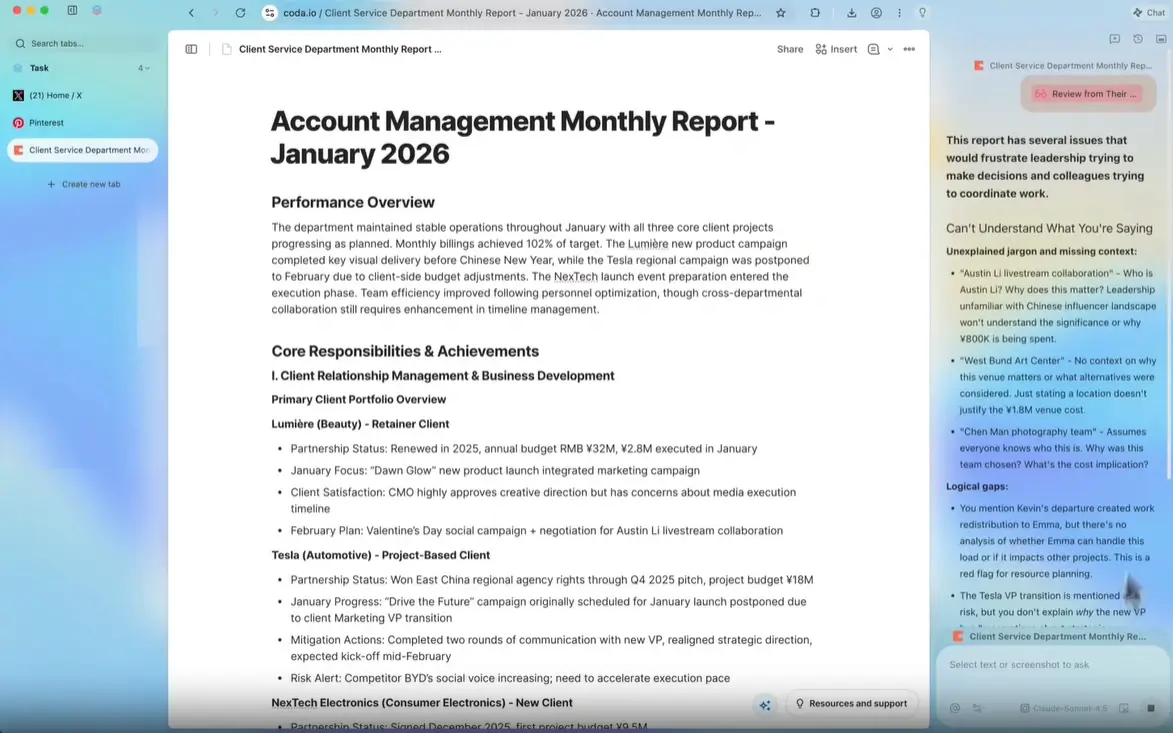
Agent workflow controls
For Windows users, the important question is how clearly the browser separates normal browsing, AI help, and reviewed task execution.
How to Choose and Set Up an AI Browser on Windows
A careful setup keeps AI browsing useful without handing too much context to a new assistant too early.
Start with your main use case
Choose research, writing, privacy, automation, or Microsoft 365 integration as the primary job. A browser that is excellent for research may not be the safest default for account administration.
Create a separate test profile
Install the browser, import only non-sensitive bookmarks, and run public-page workflows first. Do not connect every account until you understand page access and memory settings.
Review AI and privacy settings
Look for controls covering current-page reading, chat history, model training, memory, downloads, clipboard access, and approval checkpoints.
Compare real performance
Test the same Windows workflow in two or three browsers: summarize a long page, compare vendors, draft notes, and prepare a safe task. Keep the one that is accurate, explainable, and easy to stop.
Related Guides
Use these pages when your intent shifts from Windows-specific choice to broader AI browser comparison, safe downloads, or agent-browser risks.
Best AI Browsers
Compare AI browsers across research, privacy, agent features, and daily workflow fit.
Tabbit Browser Download
Check the current Windows and macOS installer paths, system requirements, and safe download notes.
Browser Agent Security Risk
Understand prompt injection, page access, and approval risks before using agentic browsing for sensitive tasks.
Official Sources to Recheck
AI browser features and Windows support change quickly. Use official pages to verify availability, pricing, privacy controls, and installer requirements.
Try an AI Browser Built for Windows Workflow Delegation
Tabbit Browser is designed for AI-assisted browsing, background tasks, research, and natural-language automation. Start with a safe Windows workflow, then expand only when permissions are clear.
FAQ
Short answers for Windows users comparing AI browsers, AI-powered browsers, and agent browsers.
What is the best AI browser for Windows?
For the easiest Windows-native option, start with Microsoft Edge Copilot. For privacy, consider Brave Leo. For research-heavy work, compare Comet and Atlas. For delegated workflow automation on PC, Tabbit Browser belongs on the shortlist.
Is Tabbit Browser available for Windows PC?
Yes. Tabbit Browser provides a Windows installer for modern 64-bit Windows PCs. Use the official Tabbit download page or official release links rather than third-party mirrors.
Should I replace Chrome with an AI browser on Windows?
Only after testing real workflows. Many users keep Chrome or Edge for sensitive accounts and use an AI browser for research, writing, comparison, and task automation until the new browser proves reliable.
Are AI browsers safe on work laptops?
They can be safe only when company policy, page-access controls, retention settings, and approval checkpoints are clear. Ask IT before installing a new browser or enabling AI features on managed devices.
Which Windows AI browser is best for automation?
For fixed, repeatable automation, scripted tools may still be better. For goal-driven browser tasks with changing pages, an agentic AI browser such as Tabbit can be more practical when review controls are used.